
UKG Ready
UKG, Inc.Business
4.79.02K Reviews
- Version
- 1.107.7
- Installs
- 1.00M
- Age Rating
- Everyone
Screenshots
Our Review of UKG Ready
 Analysis by Appyee
UKG Ready is a business app for employees whose workplace uses UKG Ready software with mobile access enabled. I would not treat it like a general job-search tool or a standalone productivity app. Its usefulness depends on the way an employer has configured the service, so the first question is simple: does your organization already use UKG Ready? If the answer is yes, this can put work-related tasks in a much more convenient place than a desktop browser. If the answer is no, installing it will not create an account or unlock a personal workspace.
My first impression is that this is an employee-facing companion rather than an app you explore casually. The developer is UKG, Inc., and the app sits in the business category. It is free to download, carries an Everyone age rating, and has built a substantial audience, with over a million installs and a 4.7 average from around thirty-six thousand ratings. Those figures suggest that many people find it dependable, but they do not remove the central requirement: your employer must have UKG Ready configured for mobile.
Getting from installation to a useful first result
I’d make the first session a short, deliberate test rather than trying to explore every screen: confirm you’re in the right workplace account, then complete one familiar, low-risk task your employer expects you to handle. That gives you a useful checkpoint and helps separate a setup issue from a feature that simply isn’t enabled for your role. Once that works, the next question is how to make the app fit into your routine without adding extra checking.
What to expect before you open it
Before installing, I would check with a manager, human resources contact, or internal support team whether mobile access is active for your organization. This is more important here than with most ordinary business apps. A successful download does not guarantee a successful sign-in, because the app is connected to an employer-managed UKG Ready environment rather than functioning as an independent service.
That arrangement has a practical advantage. When the connection is set up correctly, the app can act as a mobile doorway to the work information your organization has chosen to make available. You are not building a separate profile from scratch or trying to recreate workplace records manually. The trade-off is that the experience may differ from what another UKG Ready user sees. Two companies can use the same product while presenting different options, labels, or workflows to their employees.
I would also set expectations around support. If your password, account status, workplace details, or access rights are wrong, the fastest solution may be your employer’s support channel rather than repeated attempts inside the app. That distinction saves time: the application can display an account problem, but only the organization may be able to correct the underlying employee record or enable the relevant mobile access.
The app has been available since December 2017 and currently lists version 1.106.5, with iOS 11 as the minimum operating-system requirement. In practical terms, that makes checking device compatibility worthwhile before troubleshooting a sign-in issue. If the phone meets the requirement and the company has enabled access, the remaining setup is usually about using the correct work credentials and following the organization’s sign-in instructions.
How I would handle the first setup
For a first attempt, I would keep the process deliberately simple. Install UKG Ready, open it, and use the account details supplied by your employer. I would avoid guessing which email address or password belongs there, especially if the company uses a separate work identity. A personal email that happens to appear in workplace records may not be the same identifier used for mobile access.
If the organization has given you a specific sign-in route or instructions, I would follow those rather than relying on assumptions from another employee. This is one of the less obvious points with employer-connected applications: a colleague’s successful setup is useful evidence that mobile access exists, but it is not proof that your account has identical permissions or the same onboarding path.
Once signed in, I would spend a minute identifying what the app actually exposes to me. Do not assume that every workplace task will be present simply because the company uses UKG Ready. The available experience is shaped by employer configuration and by your role. A frontline employee may mainly need quick access while away from a desk, while a manager may see a different set of work-related actions.
I also recommend completing setup when you have enough time to verify the result, not during a rushed commute or just before a shift begins. The goal is not merely to reach the first screen. The goal is to confirm that the account connects to the correct employer environment and that the information you need is accessible. If something looks wrong, take note of the exact message and contact workplace support with that detail.
The first meaningful success
A good first success is completing one small, real work task rather than browsing every available screen. For example, if your employer uses the app for a routine employee action, open that area, review the information carefully, and finish the action only when the displayed details match your situation. This approach gives you a practical test of access without encouraging careless changes.
I find this especially useful for people who install the app because they were told, “You can do that from your phone.” That sentence can refer to different workflows in different organizations. Instead of searching randomly, start with the exact task that prompted the installation. If the app gets you through that task and shows a clear completion state, you have confirmed more than a successful login: you have confirmed that the mobile setup is useful for your role.
For a realistic everyday scenario, imagine an employee who normally waits until reaching a desktop computer to deal with a routine workplace item. After mobile access is enabled, that person can open UKG Ready during a suitable break, check the relevant details, and complete the employer-supported action without waiting for a browser session. The benefit is not flashy. It is the reduction of small delays and the ability to deal with work administration at the point when it is convenient and appropriate.
My advice is to pause after submitting anything important and look for a confirmation or updated status within the app. Do not rely only on tapping a button and closing the screen. If the action concerns attendance, scheduling, personal information, or another workplace record, the extra moment spent verifying the result is worthwhile. It helps distinguish a completed action from a screen that merely accepted your input temporarily.
Where first-time users commonly get confused
The biggest source of confusion is assuming that UKG Ready itself controls every part of the experience. It does not work like a universal consumer app where all users receive the same menu. Your employer’s configuration matters, and the account behind the app matters too. A missing option may reflect workplace settings or your role rather than a broken installation.
A second common mistake is treating a login failure as proof that the app is faulty. First check the basics: are you using the credentials intended for UKG Ready, is mobile access active for your employer, and are you entering information for the correct workplace account? If those checks do not help, contacting the organization’s support team is more productive than repeatedly reinstalling the app.
Another point that deserves attention is the difference between viewing information and taking action. A screen can be useful for checking a work detail without being the right place to make a change. I would read labels carefully and confirm that the selected date, item, or employee context is correct before submitting anything. This is particularly important on a small phone screen, where a quick tap can be easier than a careful review.
People also sometimes expect the mobile app to replace every desktop workflow. I would not make that assumption. Mobile access is most valuable for focused, time-sensitive tasks and quick checks. If you need a broad administrative view, extensive editing, or a workflow your organization has reserved for desktop access, a browser or company computer may still be the better option. The app complements the wider UKG Ready environment; it does not automatically reproduce every part of it on a phone.
Using it without creating unnecessary work
Once the first task works, I would build a small personal routine around the parts that genuinely save time. Open the app when you need a specific work action, complete that action carefully, and leave rather than turning it into another source of constant checking. This keeps the mobile tool practical and reduces the temptation to make workplace decisions while distracted.
It is also sensible to keep employer instructions nearby during the first few uses. If a task has an internal deadline, approval step, or company-specific rule, the app may provide the technical route without explaining the organization’s policy in full. In other words, UKG Ready can help you carry out a configured process, but it should not be treated as the final authority on what your employer expects.
For managers, the useful question is slightly different: does mobile access support the decisions you actually make away from a desk? If the answer is yes, the convenience can be meaningful. If your work requires detailed comparison, long notes, or several connected records at once, a larger screen may remain more comfortable. I would judge the app by the tasks it makes easier, not by whether it replaces a full workplace system.
For employees, I would start with one repeatable action and learn its confirmation pattern. That creates a reliable habit: open the app, check the context, complete the action, verify the result, and close it. This small workflow is more valuable than memorizing every menu because it reduces the chance of submitting something under the wrong account or with an overlooked detail.
How it compares with ordinary alternatives
The usual alternatives are a desktop browser, a company intranet, email, or asking a supervisor or human resources team to handle a routine request. UKG Ready is strongest when the employer has already connected the relevant process to mobile and you need access away from a desk. It is less compelling when your workplace still directs most tasks through another channel or when the mobile configuration is limited.
Compared with email, a dedicated workplace app can keep a task closer to the underlying employee record instead of scattering instructions and replies across a mailbox. Compared with an intranet, it may be more direct for a person who needs to complete an individual action rather than read general company information. Compared with a desktop browser, the phone is more convenient for short interactions but less comfortable for complex review.
That comparison also explains who should skip it. If your employer does not use UKG Ready with mobile access, this is not a useful standalone download. I would also recommend sticking with the company’s established browser or support process if your role depends on detailed desktop work and the mobile version does not expose the necessary workflow. Free installation alone is not a reason to add another app to your phone.
On the other hand, it is a sensible choice for an employee who has been told that UKG Ready is part of the workplace process and wants a focused way to handle supported tasks while away from a computer. The strong user response, including around nine thousand written reviews, is encouraging, but the decisive factor remains the match between the app and your employer’s configuration.
What I would do after the first successful use
After completing the first task, I would test one additional low-risk area that is relevant to my job, then stop. This confirms whether the app is useful beyond the initial instruction without turning setup into a long experiment. If the second area is unavailable, I would not immediately assume something is wrong; I would ask whether that function is enabled for my role.
I would also record the correct support route for future account issues. That is a small but valuable preparation step. When a workplace app fails at an inconvenient time, knowing whether to contact a manager, human resources, internal IT, or another administrator is more helpful than searching through the app blindly.
Keep the app updated through the normal platform process, especially if a workplace task is important to your routine. The listed version is 1.106.5, and compatibility begins with iOS 11, so the basic device requirement is clear. Still, the best experience depends on more than the version number: the employer’s mobile configuration and your account permissions determine what you can actually do.
My overall view is positive but carefully qualified. UKG Ready can be a convenient bridge between an employee and an employer-managed work system, particularly when a short task would otherwise require a computer. I appreciate that its value is practical rather than ornamental. At the same time, it is not an app I would recommend to everyone, because it cannot provide meaningful access without the right workplace setup.
If your employer has enabled UKG Ready for mobile, I would install it, follow the organization’s sign-in instructions, and begin with one concrete task. Verify the result before moving on, learn which options apply to your role, and use a desktop or support channel when the work becomes more involved. That path gives a first-time user the clearest answer quickly: whether this free business app genuinely makes their own workday easier.
My recommendation: use it when your employer already relies on UKG Ready and has specifically enabled mobile access; otherwise, choose the workplace channel your organization has officially provided instead of expecting the app to work independently.
Privacy and Permissions
See what permissions an app requests and how it handles your data.
- Identity
- find accounts on the device
- Contacts
- find accounts on the device
- Location
- approximate location (network-based), precise location (GPS and network-based), access extra location provider commands
- Photos/Media/Files
- read the contents of your USB storage
- Storage
- read the contents of your USB storage
- Camera
- take pictures and videos
- Other
- view network connections, pair with Bluetooth devices, access Bluetooth settings, full network access, control Near Field Communication, use accounts on the device, prevent device from sleeping, read Google service configuration
Verdict
Strengths of UKG Ready
- Combines payroll, HR, scheduling, and time tracking in one app.
- Employee self-service reduces the need to contact HR for routine tasks.
- Push notifications help users keep up with shifts and workplace updates.
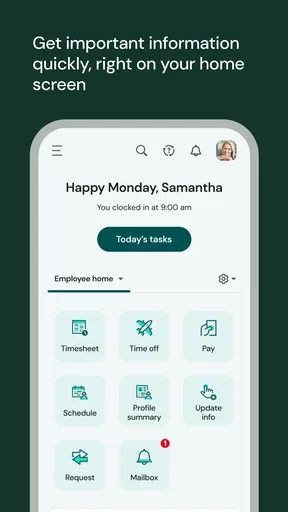
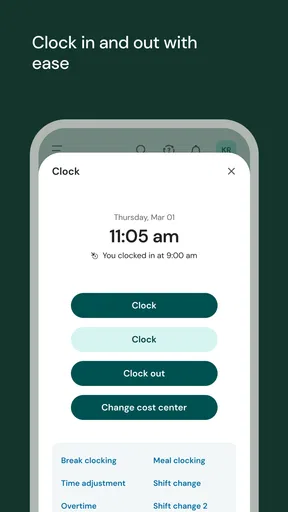
- Supports clock-in features and access to timesheets on mobile devices.
- Useful reporting tools can help managers monitor attendance and staffing.
Limitations of UKG Ready
- Some features may be unavailable if the employer has not enabled them.
- The interface can feel crowded because it covers many HR functions.
- Performance and access depend heavily on the employer’s UKG configuration.
- Certain actions may require extra verification or administrator approval.
- Users may need separate UKG products for benefits or other HR services.
Other Releases by UKG, Inc.
View All


Similar Picks in This Category
View All
LinkedIn: Community & Network
LinkedIn3.8

Zoom Workplace
zoom.com4.1

Microsoft Teams
Microsoft Corporation4.6

Meta Business Suite
Meta Platforms, Inc.4.6

Webex Meetings
Cisco Systems, Inc.4.5

TeamViewer Remote Control
TeamViewer4.4
Frequently Asked Questions
What is UKG Ready used for?
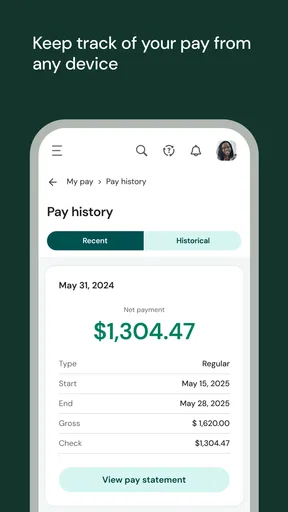
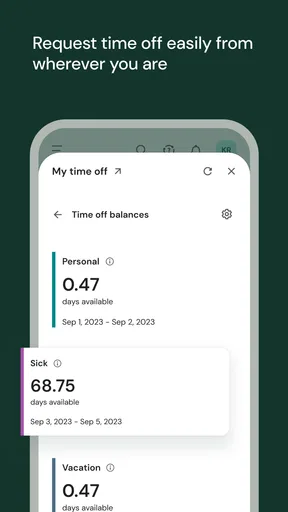
UKG Ready is a workforce management and human resources platform designed for employees and employers. Depending on an organization’s setup, the mobile app can provide access to schedules, time tracking, payroll information, benefits, leave requests, company documents, announcements, and performance-related tools. The exact features available vary by employer, role, subscription, and regional configuration, so not every user will see the same menus or options.
Can I use UKG Ready to clock in and out or view my work schedule?
In many organizations, UKG Ready allows employees to clock in and out, review upcoming shifts, check worked hours, submit timesheets, and request corrections. Some employers may also enable location-based, device-based, or other security restrictions for time tracking. If a feature is missing or a punch does not register correctly, the issue may be related to company policy, permissions, connectivity, or the employer’s UKG configuration rather than the app itself.
How do I log in to the UKG Ready app?
Your UKG Ready login is normally provided or activated by your employer, and the sign-in process may require a company-specific URL, tenant identifier, username, password, or single sign-on account. Some workplaces also require multi-factor authentication. If you cannot sign in, first confirm that you are using the correct employer portal and credentials. Password resets, account unlocks, and access permissions generally need to be handled through your organization’s HR or IT department.
Is UKG Ready free to download and use?
The UKG Ready mobile app may be available to download without a separate purchase, but it is not a standalone service that individuals can normally subscribe to for personal use. Access depends on an employer having an active UKG Ready account and enabling the relevant employee features. Your organization’s contract, policies, and permissions determine what you can use, while mobile data charges or notification settings may still depend on your device and network provider.
Is UKG Ready safe for viewing payroll and personal employee information?
UKG Ready is intended for handling sensitive workforce information, including payroll, tax, benefits, attendance, and personal employment details. The app’s security also depends on how your employer configures the service and how carefully you protect your account. Use a strong, unique password, enable required authentication, keep your phone updated, and avoid signing in on shared devices. If you notice suspicious activity or incorrect information, contact your employer’s HR or IT support promptly.
